Let's start with a definition - what is a Cognos Now! data stream and why should I care you ask? A data stream (also may be referred to as an "event" in previous iterations of Cognos Now / Lava) is the object that is responsible for extracting the data from the jdbc data source (aka "agent), and the source of data that you will use to build business views and cubes and ultimately use to build reports and dashboards. Data streams contain not only a query that is submitted to the transactional data source, but also the schedule that controls how often the data is refreshed from the data source. This refresh is commonly referred to as "Polling" the data source for new information.
Data Streams can be either "Single" or "Consolidated" and you will have to choose one type when you create a new data stream. I will focus on Single data streams today and cover consolidated data streams at a later date, as they are significantly different than standard / single data streams. Types of single data streams include flat file, jdbc, http post, web service, and Salesforce. Today I am discussing jdbc data sources, but plan to cover Salesforce and Flat File types at a later date as well. A jdbc data source is what you would use for a conventional extraction of transactional data from a relational data source such as Oracle or SQL Server.
When creating your new data stream you have to specify a jdbc connection or agent as the data source. I covered agents yesterday.
We will assume that you have a jdbc agent setup and configured properly for today's exercise. Select the jdbc connection / agent from the New Data Stream window using the "Browse..." button. Next you need to insert either a query in the Query window, or select "Stored Procedure" if you need to call a procedure to get the data you need. Let's assume you are running a simple query and not a stored procedure to extract the data you need for your reports. Here I am creating a simple data stream based on the Oracle query "Select sysdate from dual". This will give me the current system time as of the last time the data stream refreshed.

A few notes about your sql query in the data stream:
- The query must not have any special characters such as quotation marks, semicolons, dashes, or comments.
- The database user specified in the jdbc agent associated with this data stream must have read access to the table(s) accessed in this query.
- The query should comply with the sql standards for the database you are connecting to. You can develop your query using standard sql query tools such as Oracle's SQL Plus, Sql Developer, or aftermarket products such as Toad. Personally, I prefer SQL Developer as it is easy to use, and free.
- When designing your query, use good design principles to make it execute as fast as possible. For example, do not use DISTINCT if you can avoid it, and avoid inline queries as well if possible. If you have a particularly complex data extraction or joins to perform, a good approach can be to develop a materialized view or snapshot which aggregates the data first in the database, then simply access the snapshot with a simple data stream query such as "SELECT * FROM SNAPSHOT". This will have the added benefit of allowing you to modify the logic behind the Cognos data extraction without actually having to make any changes to the Cognos data stream.
Once you have created your query, select "Continue" to create the new Data Stream. If the query is incorrect or does not meet Cognos' standards you will get an error message. The next screen will allow you to name the data stream, choose the save location (folder), add a description, and revise the query if necessary (select "Resubmit Query" if you make changes before saving). Some other settings that I always enable are "Disable data stream after this number of consecutive errors" (set to five usually) and "Treat all rows in the result set as a single event".
If you save at this point you will have a simple data stream that refreshes every ten minutes. Here's what my test data stream looks like using the default refresh schedule:

The last (and possibly most important) part of today's lesson concerns the refreshing or polling schedule of you new datastream. You need to determine how often this new datastream should refresh it's snapshot of your business data - this will depend on the business needs for the report. If you are capturing output metrics for a fast moving assembly line for example, you may want to refresh your data every five minutes. If you are reviewing revenue for the previous fiscal year, you can probably get away with a daily or even weekly refresh of the data. Keep in mind that the more often the data stream refreshes, the more load you will be placing on your transactional system (which has to do the actual data gathering and delivery to Cognos) and of course also loading the Cognos system itself, which is a limited (albiet powerful) machine. I find that a good compromise is a nightly refresh for most data streams. This has the benefit of allowing me to defer the data collection work on the transactional system to off-peak hours and make sure that no one will be running a Cognos report while the data stream is refreshing. With that in mind, let's go through the setup of a nightly refresh.
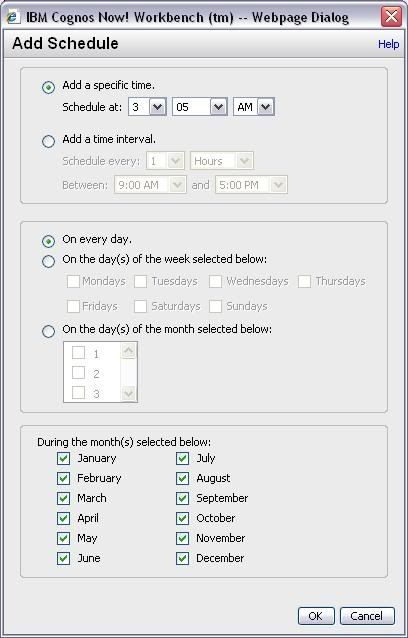
First, you need to set the "Clear State Interval" time. Without getting too bogged down in the details, a simple explanation of this function is that it flushes the data stored in Cognos Now memory that has been allocated to the data stream. The DBA's in the audience can think of this as a truncate statement running against the data streams' virtual table in the Cognos Now internal database. From the "Configure Data Stream - JDBC Source" screen, click on the "Clear State Interval" tab towards the bottom of the screen. From there click the "Clear State on a Schedule" radio button, then click the Add Schedule... button. The add schedule dialog will appear. Here's what a simple refresh schedule that runs at 3:00 AM would look like:

Note that this interface allows many combinations for refresh schedules. Click ok to set the schedule.
Lastly, you need to set the Polling schedule. This is the date/time when Cognos Now! will rerun your query and add the new data set to memory. This activity should occur after the Clear State Interval that you set previously (a minimum of five minutes is usually a good setting). From the Configure Data Stream window, select the Polling tab, then click the "Poll on a Schedule" radio button. Click "Add Schedule..." to create a new schedule, and then use the Add Schedule dialog to set the refresh time. Here you can see I set the Polling time five minutes after the Clear State Interval time:
Just a quick tip - it's best to space out your data stream refresh times if you can. So for example, let's say you have five data stream you want to refresh nightly. Instead of scheduling them to all refresh at 1:00 AM, schedule one for midnight, one for 1:00 AM, one for 2:00 AM, etc. This will reduce the processing load on both the Cognos Now! server and the transactional database.
Once you click "OK" in the Add Schedule window, then "Save Data Stream" you should be all set. At this point you can begin building views and cubes based on the data extracted by your data stream. I'll try to get to all that good stuff in the next few days or as soon as I can. Good Luck!


Hi Nick,
ReplyDeleteI just wanted to say hello and commend you on producing this great resource for Cognos Now!. There is lots of great and insightful information here and I'll be sure to pass this along to our teams.
Scott Oakley
Internet Marketing Specialist
Cognos Software, IBM Software Group
Thanks for the feedback Scott.
ReplyDeleteFTW! It is about time someone started a blog on Cognos Now! specifically.
ReplyDelete