Wednesday, March 18, 2009

More Workbench Fun: Data Views

Good Morning. I thought the next logical step in my little blogging journey through Cognos Now! would be a general description of one of my favorite objects in the workbench - the view. You may also hear people refer to them as "Business Views" or "Data Views" but for simplicity, I'm just going to call them "views" here. 

Let's start with a basic description. In Cognos Now! a view is an object that allows you to extract data from a data stream for reporting purposes. It is the most basic way to extract this data and provides an easy way to quickly move data from the data source to a Cognos report. All views in Cognos Now! are based upon data from a data stream (which I discussed in depth previously). Views can also be built upon other views, and lookups - so they can become fairly complex objects. Mastery of views in Cognos Now! is critical if you want to be able to create general operational reports that don't necessarily fit into a data cube (which I will cover at a later date).

A simple example of how to create a view is a great place to start. In a previous post I took you through how to create a basic data stream built upon an Oracle data source and a simple query (select sysdate from dual). This data stream will only report one record with one column - the current date / time of the database server. Once the datastream is setup and active, it's time to create the view:

- From the Cognos Now! workbench, click on a folder where you want the view to appear - this is important because once you create a view you really can't move it.

- Select Activities > Create New > View. A dialogue will appear asking you to select a datastream or derivative view on which to base your new view. This will be the data source that should contain most, or all of the information you need for your report. Here's what the dialogue looks like:


You can see that I've selected a data stream called "test_cbs_ds" and the dialogue shows the contents of that data stream (sysdate).  Of course you can also select a view as the source, but let's keep it simple here and stick with the data stream. Click Next to create your new view.

- The dialogue will then ask if you want to select any additional lookup tables for your view. These can be based on other views or lookup objects (to be covered later as well) and if you selected any object you would be creating an inner join between the lookup and your primary data source. Let's skip this and just select "OK" to move on.

- Now you will see the Configure View screen. The first thing we need to do is give the view a name. I like to use a standard naming convention to keep things simple (all view objects are named with VW at the end and use underscores instead of spaces). Let's call our new view TEST_SYSDATE_VW. You can also add an optional description.

- Now you need to add one or more columns to your view. You can do this two ways - the simplest is to drag the column from the field on the left to the Add Field area to the right, or use the Add Field dialogue. Here I have created the view, given it a description, and added a column:


- There are other options that can be useful as well. Note that you can edit the field expression directly by clicking the elipses next to the field expression for the column. In this field builder you can embed formatting commands, summary commands, and even build out complex case statements if necessary. There is a function builder available if you select the "More Functions" field. More information about functions is available using the online help - just select the blue "help" link in any window.

- Another option available under the Advanced tab is View Persistance. This useful feature allows you to save the content of the view dynamically to any data source that you can write to (such as the postgresql database embedded in your Cognos Now appliance). Persistance will be covered at a later date, but the basic funcationality is that every time the data stream the view is built upon refreshes, the new data will be stored to the database specified in the view's persistance configuration. To setup persistance go to the Advanced Tab then set persistance status to Enabled and use the Define link to configure the database connection.

- You can also quickly review the view's setup using the "Display SQL Expression" button. This will give you a read-only view of the SQL your view object is based upon (built by the interface). My test view's SQL looks like this:

SELECT      Development.test_cbs_ds.SYSDATE AS SYSDATE
FROM        Development.test_cbs_ds

- Select Save View to create your new view object.

- Once your new view is saved, you should see the object in the workbench object tree. You may need to set the permissions of your view to allow the appropriate users to access it. I'll cover security and roles at a later date, but you can easily set this up using the "Permissions" link visible after you click on the view object in the workbench. 

-Note once the view is created you can check the contents easily by clicking on it in the workbench and selecting the "Results" tab. This will show the first fifty or so records that the view contains. Here's what my new test view looks like:


An imporant concept to understand is that a freshly created view will not contain any information until the data stream it is based upon refreshes and collects new data. This means that our new view will not show any data initially. Don't panic if you get a "data not available" message on your results tab. Just go into the data stream the view is built on and set the refresh to occur soon. It's also important to realize that any time you make a change to a view, this situation will occur again - ie no data will be available until the data stream refreshes.

The exception to this rule is when your view is built upon another view. In the configuration below:

Data Agent > Data Stream > View 1 > View 2 

you can modify view 2 as often as you like and it will always show data, as long as view 1 contains data. With view 1 however, any change you make will clear the contents of itself and both view 1 and view 2 will be empty until the data stream refreshes. So, with this in mind, if you are building a view for a report, you may want to create the scenario above, and use view 2 as your "presentation view" that your report is built upon. This allows you to easily make changes to the reports data source (view 2) without having to refresh the data stream. This is a critical design methodology that took me a while to understand.

I hope this gives a bit more insite into Cognos Now! and views in particular, and makes it easier for you to quickly get up and running. Stay tuned for the next installment, when we actually create a report and dashboard! 

Wednesday, March 11, 2009

Data Streams

Okay, time for Cognos Now! Lesson #2 - Data Streams. I thought I would focus on data streams today as they are (after agents) one of the most important parts of modeling data in the Cognos Now! workbench. 

Let's start with a definition - what is a Cognos Now! data stream and why should I care you ask? A data stream (also may be referred to as an "event" in previous iterations of Cognos Now / Lava) is the object that is responsible for extracting the data from the jdbc data source (aka "agent), and the source of data that you will use to build business views and cubes and ultimately use to build reports and dashboards. Data streams contain not only a query that is submitted to the transactional data source, but also the schedule that controls how often the data is refreshed from the data source. This refresh is commonly referred to as "Polling" the data source for new information.

Data Streams can be either "Single" or "Consolidated" and you will have to choose one type when you create a new data stream. I will focus on Single data streams today and cover consolidated data streams at a later date, as they are significantly different than standard / single data streams. Types of single data streams include flat file, jdbc, http post, web service, and Salesforce. Today I am discussing jdbc data sources, but plan to cover Salesforce and Flat File types at a later date as well. A jdbc data source is what you would use for a conventional extraction of transactional data from a relational data source such as Oracle or SQL Server.

When creating your new data stream you have to specify a jdbc connection or agent as the data source. I covered agents yesterday.

We will assume that you have a jdbc agent setup and configured properly for today's exercise. Select the jdbc connection / agent from the New Data Stream window using the "Browse..." button. Next you need to insert either a query in the Query window, or select "Stored Procedure" if you need to call a procedure to get the data you need. Let's assume you are running a simple query and not a stored procedure to extract the data you need for your reports. Here I am creating a simple data stream based on the Oracle query "Select sysdate from dual". This will give me the current system time as of the last time the data stream refreshed.


A few notes about your sql query in the data stream:

- The query must not have any special characters such as quotation marks, semicolons, dashes, or comments.

- The database user specified in the jdbc agent associated with this data stream must have read access to the table(s) accessed in this query.

- The query should comply with the sql standards for the database you are connecting to. You can develop your query using standard sql query tools such as Oracle's SQL Plus, Sql Developer, or aftermarket products such as Toad. Personally, I prefer SQL Developer as it is easy to use, and free.

- When designing your query, use good design principles to make it execute as fast as possible. For example, do not use DISTINCT if you can avoid it, and avoid inline queries as well if possible. If you have a particularly complex data extraction or joins to perform, a good approach can be to develop a materialized view or snapshot which aggregates the data first in the database, then simply access the snapshot with a simple data stream query such as "SELECT * FROM SNAPSHOT". This will have the added benefit of allowing you to modify the logic behind the Cognos data extraction without actually having to make any changes to the Cognos data stream.

Once you have created your query, select "Continue" to create the new Data Stream. If the query is incorrect or does not meet Cognos' standards you will get an error message. The next screen will allow you to name the data stream, choose the save location (folder), add a description, and revise the query if necessary (select "Resubmit Query" if you make changes before saving). Some other settings that I always enable are "Disable data stream after this number of consecutive errors" (set to five usually) and "Treat all rows in the result set as a single event".

If you save at this point you will have a simple data stream that refreshes every ten minutes. Here's what my test data stream looks like using the default refresh schedule:


The last (and possibly most important) part of today's lesson concerns the refreshing or polling schedule of you new datastream. You need to determine how often this new datastream should refresh it's snapshot of your business data - this will depend on the business needs for the report. If you are capturing output metrics for a fast moving assembly line for example, you may want to refresh your data every five minutes. If you are reviewing revenue for the previous fiscal year, you can probably get away with a daily or even weekly refresh of the data. Keep in mind that the more often the data stream refreshes, the more load you will be placing on your transactional system (which has to do the actual data gathering and delivery to Cognos) and of course also loading the Cognos system itself, which is a limited (albiet powerful) machine. I find that a good compromise is a nightly refresh for most data streams. This has the benefit of allowing me to defer the data collection work on the transactional system to off-peak hours and make sure that no one will be running a Cognos report while the data stream is refreshing. With that in mind, let's go through the setup of a nightly refresh. 

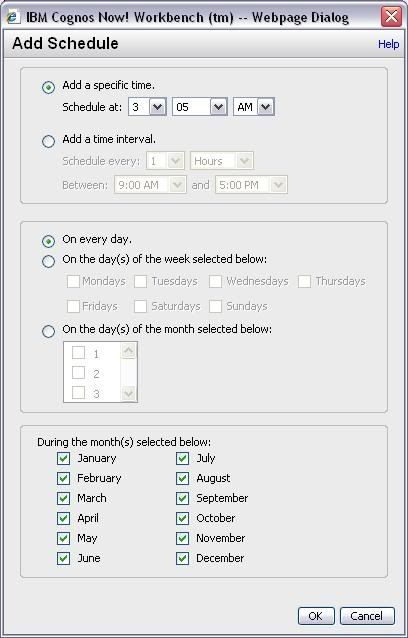
First, you need to set the "Clear State Interval" time. Without getting too bogged down in the details, a simple explanation of this function is that it flushes the data stored in Cognos Now memory that has been allocated to the data stream. The DBA's in the audience can think of this as a truncate statement running against the data streams' virtual table in the Cognos Now internal database. From the "Configure Data Stream - JDBC Source" screen, click on the "Clear State Interval" tab towards the bottom of the screen. From there click the "Clear State on a Schedule" radio button, then click the Add Schedule... button. The add schedule dialog will appear. Here's what a simple refresh schedule that runs at 3:00 AM would look like:


Note that this interface allows many combinations for refresh schedules. Click ok to set the schedule.

Lastly, you need to set the Polling schedule. This is the date/time when Cognos Now! will rerun your query and add the new data set to memory. This activity should occur after the Clear State Interval that you set previously (a minimum of five minutes is usually a good setting). From the Configure Data Stream window, select the Polling tab, then click the "Poll on a Schedule" radio button. Click "Add Schedule..." to create a new schedule, and then use the Add Schedule dialog to set the refresh time. Here you can see I set the Polling time five minutes after the Clear State Interval time:


Just a quick tip - it's best to space out your data stream refresh times if you can. So for example, let's say you have five data stream you want to refresh nightly. Instead of scheduling them to all refresh at 1:00 AM, schedule one for midnight, one for 1:00 AM, one for 2:00 AM, etc. This will reduce the processing load on both the Cognos Now! server and the transactional database.

Once you click "OK" in the Add Schedule window, then "Save Data Stream" you should be all set. At this point you can begin building views and cubes based on the data extracted by your data stream. I'll try to get to all that good stuff in the next few days or as soon as I can. Good Luck!

Tuesday, March 10, 2009

Datasources and Agents

One of the most difficult concepts to master when transitioning to the Cognos Now! modeling environment is understanding the differences and appropriate uses for agents, datastreams, views, cubes, and lookup tables. I will try to discuss all of these objects eventually, but I thought that I would focus on the fundamentals of datasources and agents in particular today.

Setting up the data modeling environment starts with the configuration of an agent. An agent is an object that Cognos Now! uses to connect to an external datasource and extract transactional data. Agents are usually based on jdbc connections to large databases such as Oracle or SQL Server, but they can also be used to connect to files stored on the Cognos Now appliance or other datasources such as Salesforce.com. I will demonstrate the creation of a JDBC agent for an Oracle 9i database here, and discuss other types of agents at a later date.

To create a new agent, you need to define the agent in both the Workbench and within the Appliance Administration console. 

To create an agent in the workbench, select Activities > Create New > Agent. Then select the type. One of the most common agent types is JDBC. JDBC agents can connect to any JDBC standard database, such as Oracle, MS Sql Server, Postgresql, Mysql, etc.  First select "JDBC" as the agent type, then assign a name and set the "Save in" location. It is best to save agents at the root level however, not in a folder. After the agent is created, reopen it for editing and set the database type, then set the type of jdbc connection (I am using Datasource-based for Oracle), and set the JNDI Name as the same as the Agent name for simplicity. It is not nececessary to set username or password here.

Here you can see what the properties screen looks like for a typical agent that connects to an Oracle database.


Note that the agent is configured as "datasource based." This means that the Appliance Administration console is being used to define the datasource details. The agent definition in the workbench only needs to define the name and type of the agent. All agents should be setup in this way, per Cognos Now! customer support. 

The next step is to setup the definition of the datasource in the appliance administration console. Navigate to http://cognos.SERVER_URL.com/rAA and login using the "Admin" account for your system. Once you login, select "Cognos Now! Configuration" then "Manage Data Sources." Select "Add Data Source" to create the new source. You will need to provide a JNDI Name value - this should match the name of the agent you created previously in the workbench. You also need to provide the database connection url, which should look something like this:

oracle:thin:DATABASE_USER/DATABASE_PASSWORD@SERVERNAME:PORT:INSTANCE

You can usually get this information from the tnsnames.ora file provided by your dba for database connectivity. If you don't have it, call your administrator and ask what the jdbc connection string should be for your database. 

Next you need to provide a database driver classname. This will be associated with the jdbc driver that you will copy to your Cognos Now server. A typical classname for an Oracle jdbc driver looks like this:

oracle.jdbc.driver.OracleDriver

This classname will change based upon the type of database you are connecting to and the jdbc driver you are using. 

Additionally, you will have to enter the database username and password for the system you are connecting to. Frequently a custom Cognos schema and database user is created to allow tight control over what information is available for reporting purposes. Finally, you should also set the maximum pool size to control the maximum number of database connections allowed (20 is a good number to start with).

The last step is placing a copy of the appropriate jdbc driver on the Cognos Now! server. To accomplish this you will need to obtain the correct jdbc driver for the system you are connecting to first. You can retrieve jdbc drivers for the Oracle database from the Oracle site. Most other database applications publish jdbc drivers that you can download for free via the web. Also, the Cognos Now! machine should ship with some jdbc drivers already setup. 

After you have retrieved an appropriate jdbc driver, you need to place a copy of it on the Cognos Now! appliance. To do this you can use the "Upload JDBC Driver" interface in the Cognos Now admin console. Select "Cognos Now Configuration" then "Upload JDBC Driver" then use the browse command to select the appropriate jdbc driver file.

If you have completed all the steps correctly, you should be able to setup a datastream and start extracting real time transactional data from your datasource for your reports and dashboards. Stay tuned for design tips and tricks on how to best accomplish this.

First Post

Hello! Welcome to my first ever blog post. Just wanted to give some direction to this endeavor and introduce myself.

I've been working with Cognos reporting software for about three years now, with about 1/3 of that time focusing exclusively on the Cognos Now! BI application. I've noticed that there is an almost complete absense of information about this reporting appliance / software online and decided to start this blog to help address that. Also I will use this forum as a way to document whatever I think is interesting and related to Cognos and BI reporting in general.

Look for upcoming posts related to building dashboards, addressing issues, and updates from the Cognos Forum Conference in May, 2009 which I'll be attending.

Thanks for stopping by!